
Version (2) 26.2
Release Date - October 31, 2025
This release introduces some profound changes in behavior.
Please read carefully.
We spent time rethinking how the app should behave. There are a number of changes to align functionality with the guidance for Shot Clock procedures in the CSI Rule Book
We also improved the formatting and layout to make it more user friendly and easier to use. These notes show an iPhone screen, but iPad screens are identical in portrait mode. Landscape mode on iPad has the same functionality, but makes better use of the screen real estate.
The examples show iOS 26 with the new liquid glass look. But 'The Shot Clock' will work on older versions of IOS. On older versions the 'look and feel' and some icons will be different, but the functionality will be the same.
The app will run on iOS 16 and up, on both iPad and iPhone.
Starting and Restarting the Timer
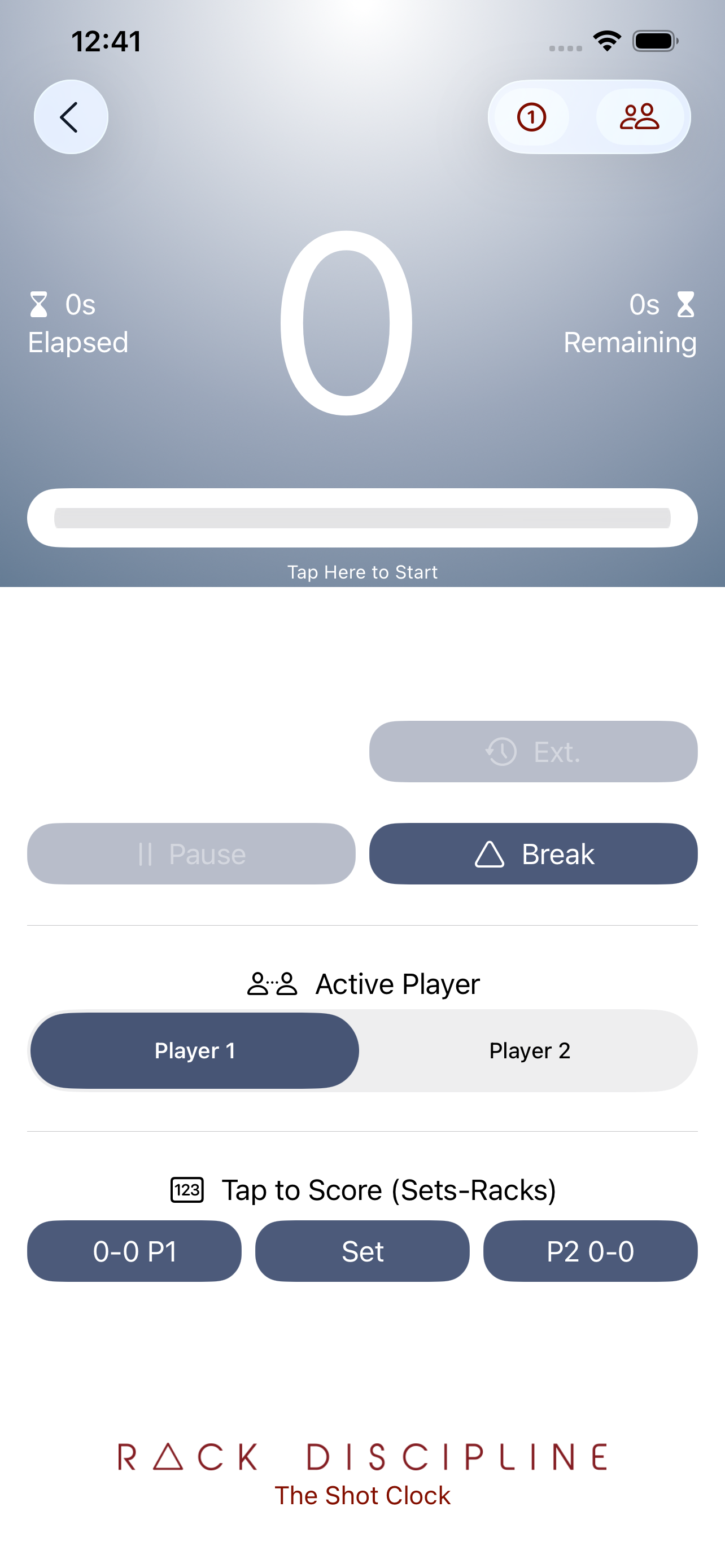
The Timer no longer has a 'Start' button. Instead you can use the tap gesture anywhere in the header to start and restart the timer. OR if you select 'Start Timer on Player Change' option - the Timer will restart each time you switch from Player 1 to Player 2. Easy!
When the clock first loads, the timer will show zero. Tap the header to start the timer. Tap again and the timer will restart from designated shot time. E.g. 30 seconds.
Important: The Break button is still present. This will restart the timer from the Break Timer value (if set - see below). But also resets the extension counters.
Example: If you are using the app for CSI league play, you will set the 'Break Timer' to the value in the CSI Rule Book (45 secs). This is the time that the player has to complete their shot after the clock starts.
Break Timer Behaviour
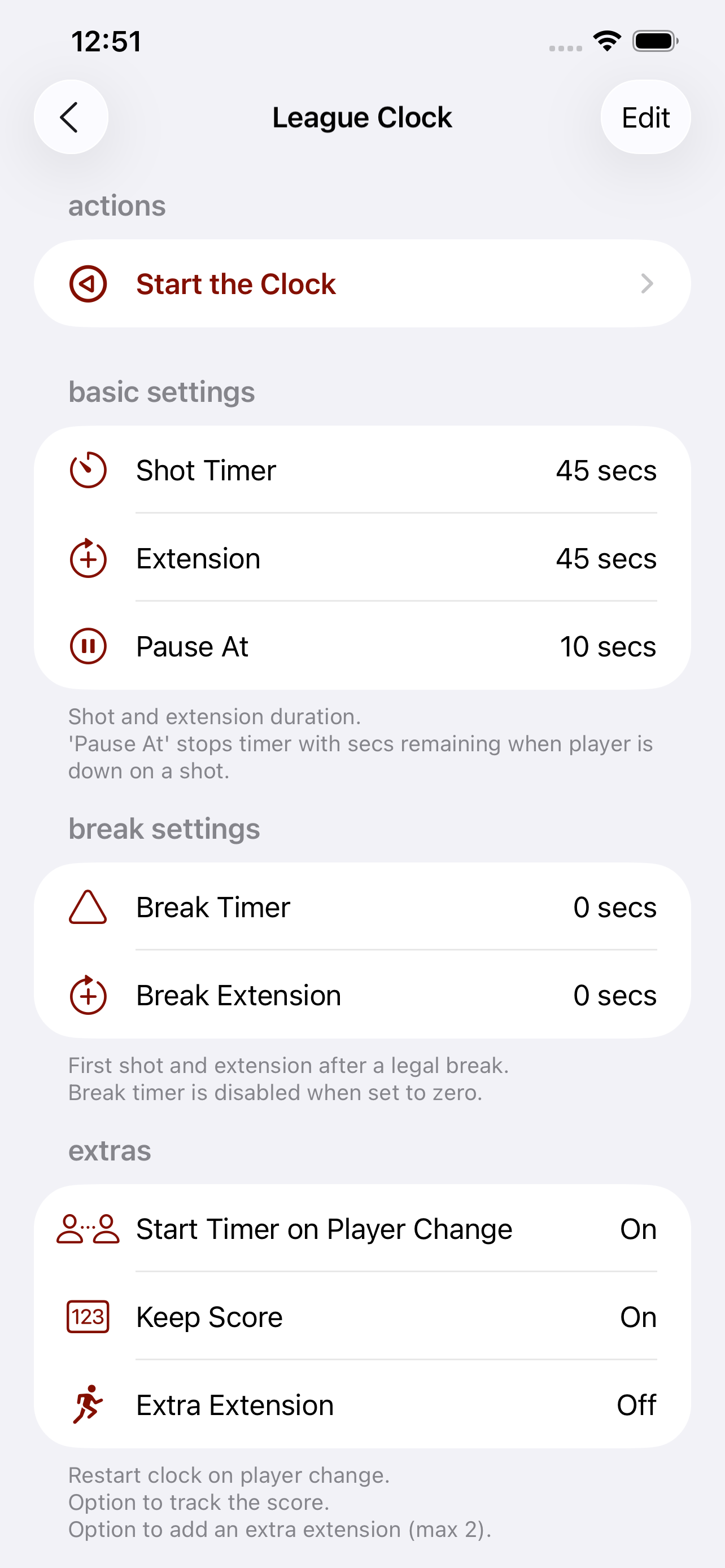
If the Timer is configured with a 'Break Timer' value of zero (0), the timer WILL NOT restart on the break. The Break button will ONLY reset the extension counters.
This conforms to CSI league play rules and regulations where the first shot after the break is NOT on the shot clock.
Important: You will notice that the sliders for the Shot Timer and Shot Extension will also change the Break Timer values. This is convenient when you first configure the Timer. But be careful to not change the Break Timer value when you are re-configuring the ShotTimer.
Example One: In Professional matches the Shot Timer and Extension values are set to 30 seconds. The Break Timer and Extension values are set to 60 seconds.
Example Two: In BCA / USAPL matches the Shot Timer and Extension values are set to 45 seconds. The Break Timer and Extension values are set to 0 seconds. This is because the first shot after the break is NOT on a shot clock.
Break and Push
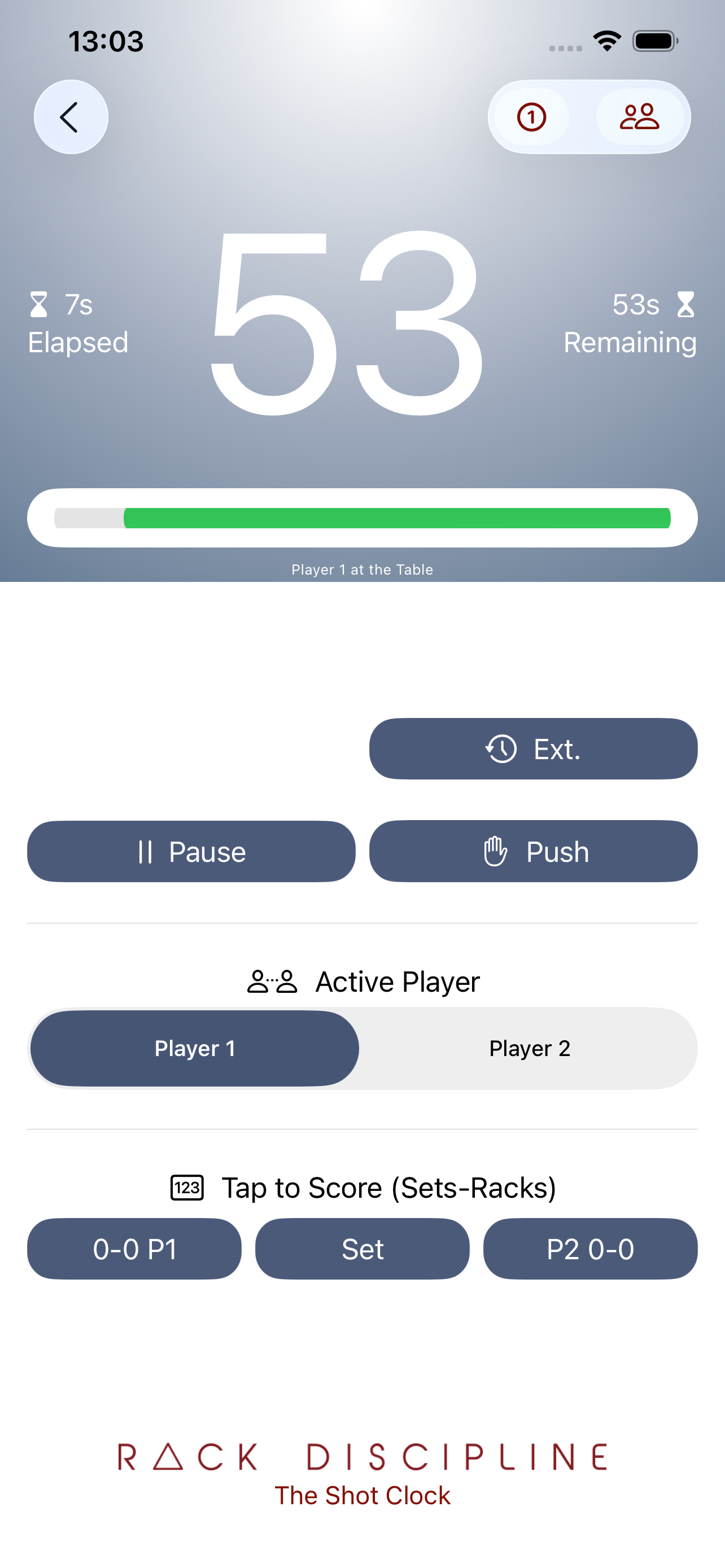
Following the Break (pressing the Break button) the Timer will change the Break button to "Push". When "Push" is pressed,
the timer will (a) reset to the Break Timer value (if set), and (b) switch the player,
but without resetting the extension counter(s).
This fixes the situation where the Player at the table breaks, then decides to Push.
In this case, the incoming player also gets the same Shot Timer value, as if they had the Break.
Example One: In Professional match, Player 1 breaks and gets a 60 second clock. They decide to Push.
Now the incoming player also has the 60 second clock (not 30 as per a regular shot).
Example Two: In Professional match, Player 1 breaks and calls for an extension before deciding to Push.
This used to be an issue, because the only way to get a Break Timer value for Player 2 was to press 'Break' again.
This would reset the extension counters (not good). Now the Push button allows for this (odd) situation.
Extra Extension
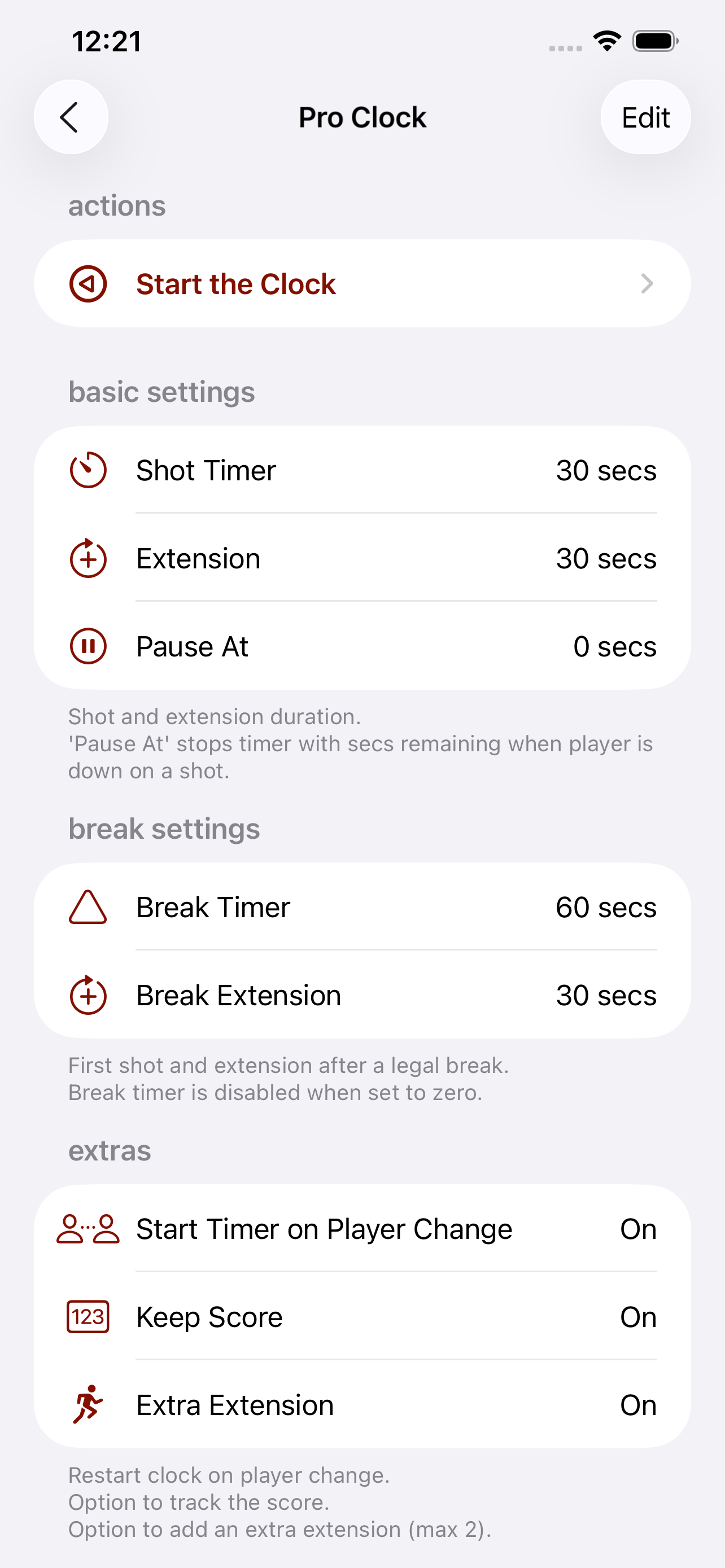
'Extra Extension' is a new feature that allows for an additional allowable extension to the timer. Normally a player gets just one extension per rack. But under exceptional circumstances, they are allowed another extension.
This conforms to CSI league play rules and regulations where players are allowed two extensions for the final rack when the match score is 'hill hill'.
You'll notice the 'Extra Extension' counter icon / button appears next to the Player Manager icon in the toolbar when this option is selected in the Config Detail screen.
Keeping Score
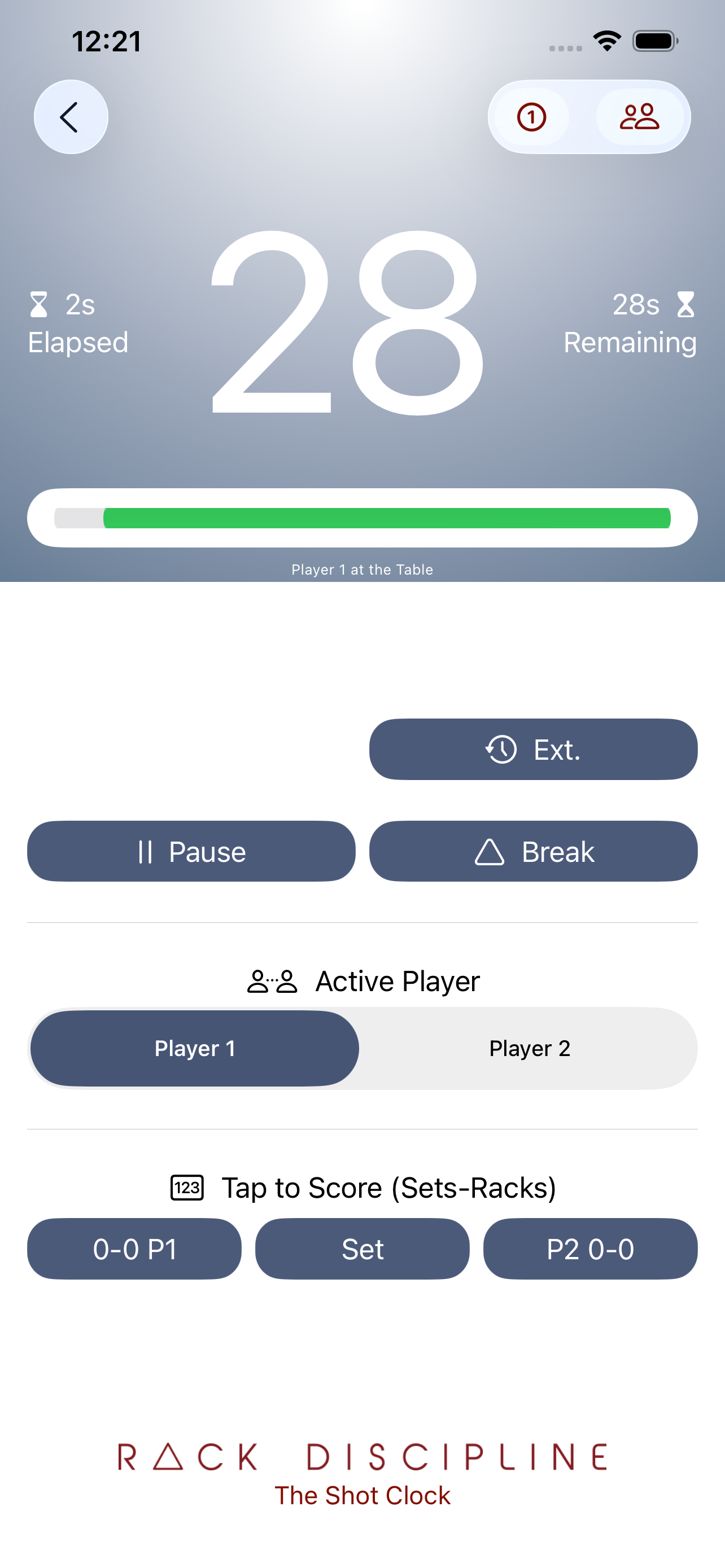
The Timer configuration also has an option to keep score. When selected, some additional buttons will appear in the Timer View.
Tap on the score button on either side to reflect a rack win for the respective player.
Tap on the "Set" button to reflect the beginning of a new set. The player with the highest rack score will record a Set win.
Important: The score can be modified or reset in the new Player Manager screen (see below).
Player Manager
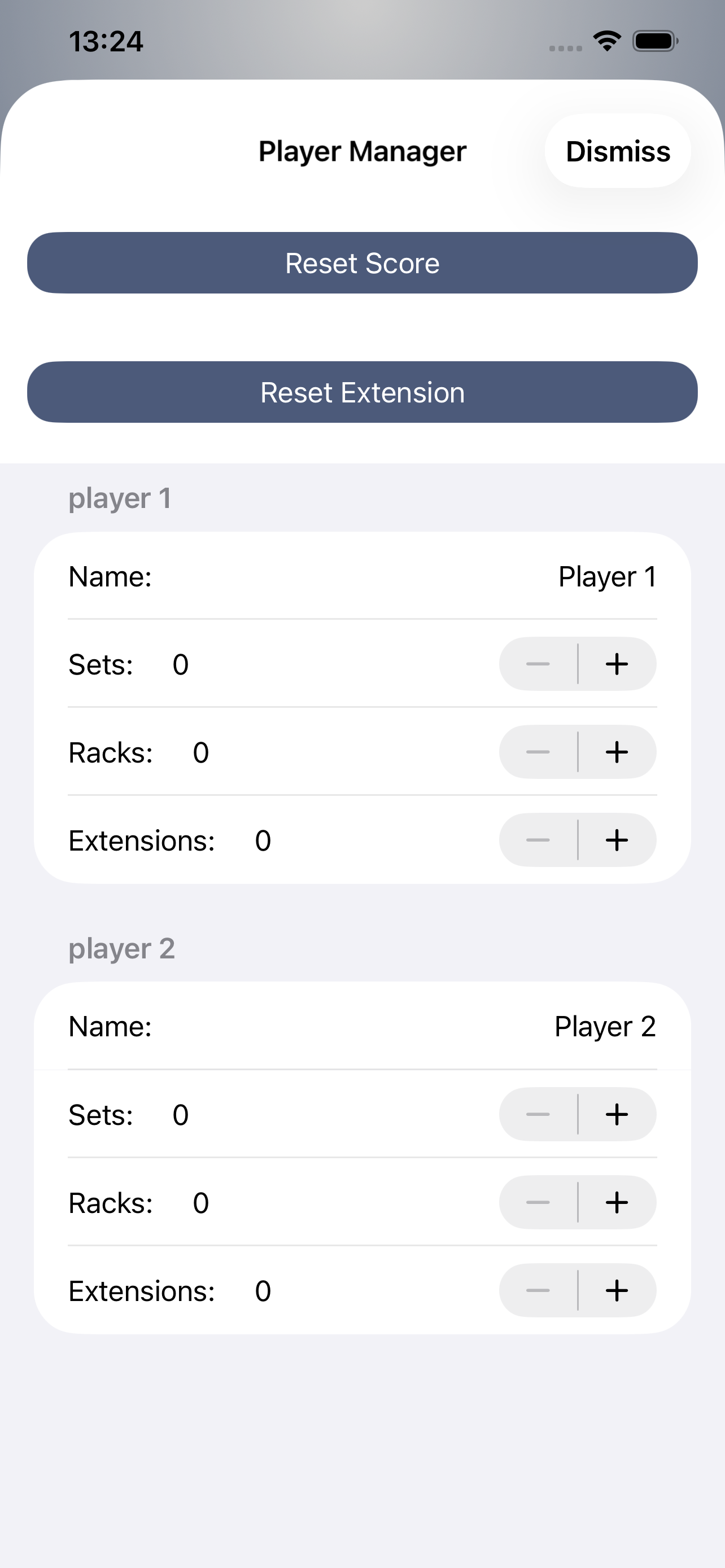
The Player Manager allows you to replace the default 'Player 1' and 'Player 2' labels with real names.
You can also modify and reset the extension counter(s) and scores as needed.
Landscape Mode (iPad only)
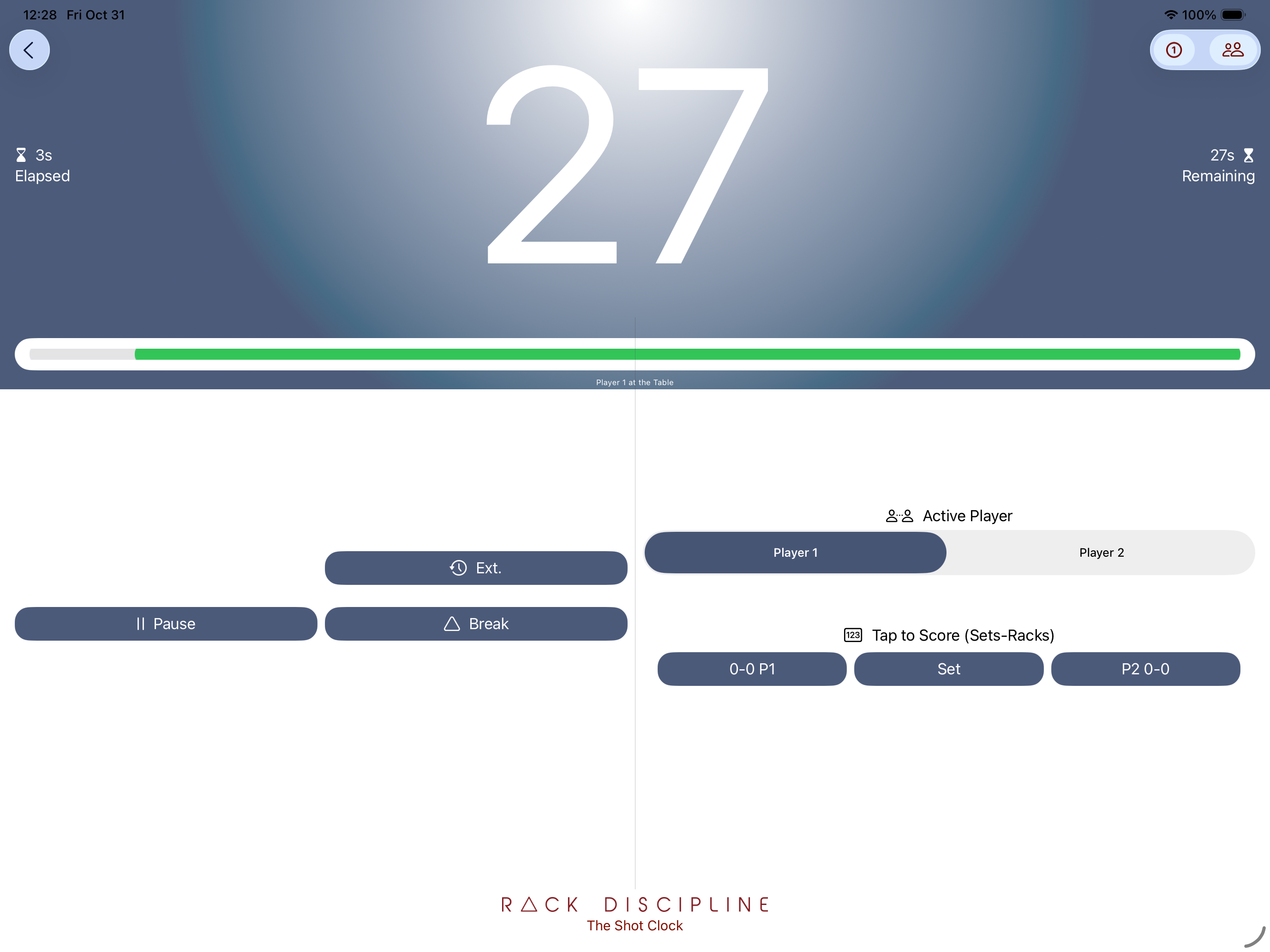
The iPad has more space to play with. The Timer buttons are configured a little differently.
This layout is helpful if you are using larger dynamic text sizes.