

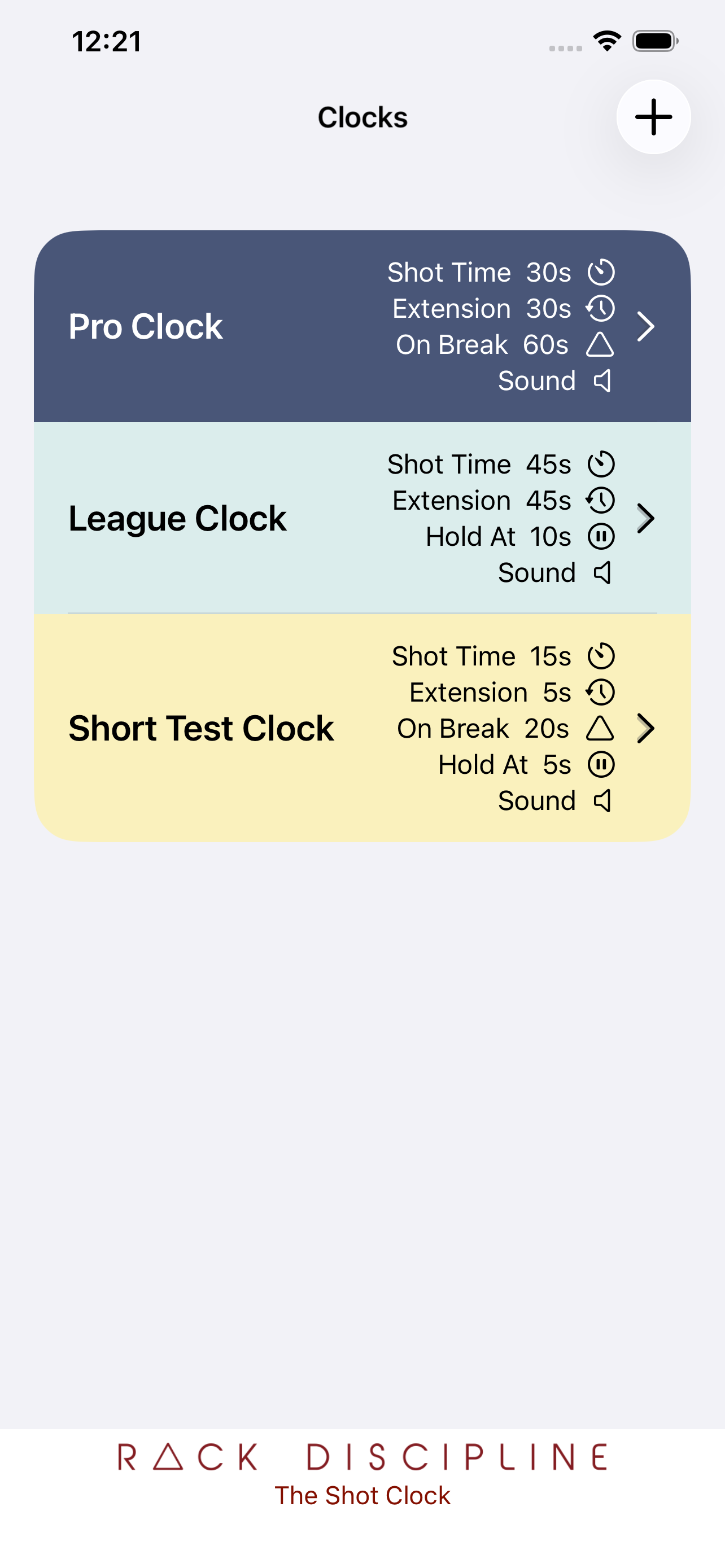
Clock list
Launch into a list of Shot Clock configurations. Create as many as you need — often one for professionals and one for league play.
Select the + symbol to add a new configuration with your own choices.

For referees and desk staff
CSI-ready shot timing on iPhone and iPad — extensions, break timers, and player tracking for league or professional play.
Set up the clocks you need, start the timer, and keep every rack on schedule.
Launch into a list of Shot Clock configurations. Create as many as you need — often one for professionals and one for league play.
Select the + symbol to add a new configuration with your own choices.
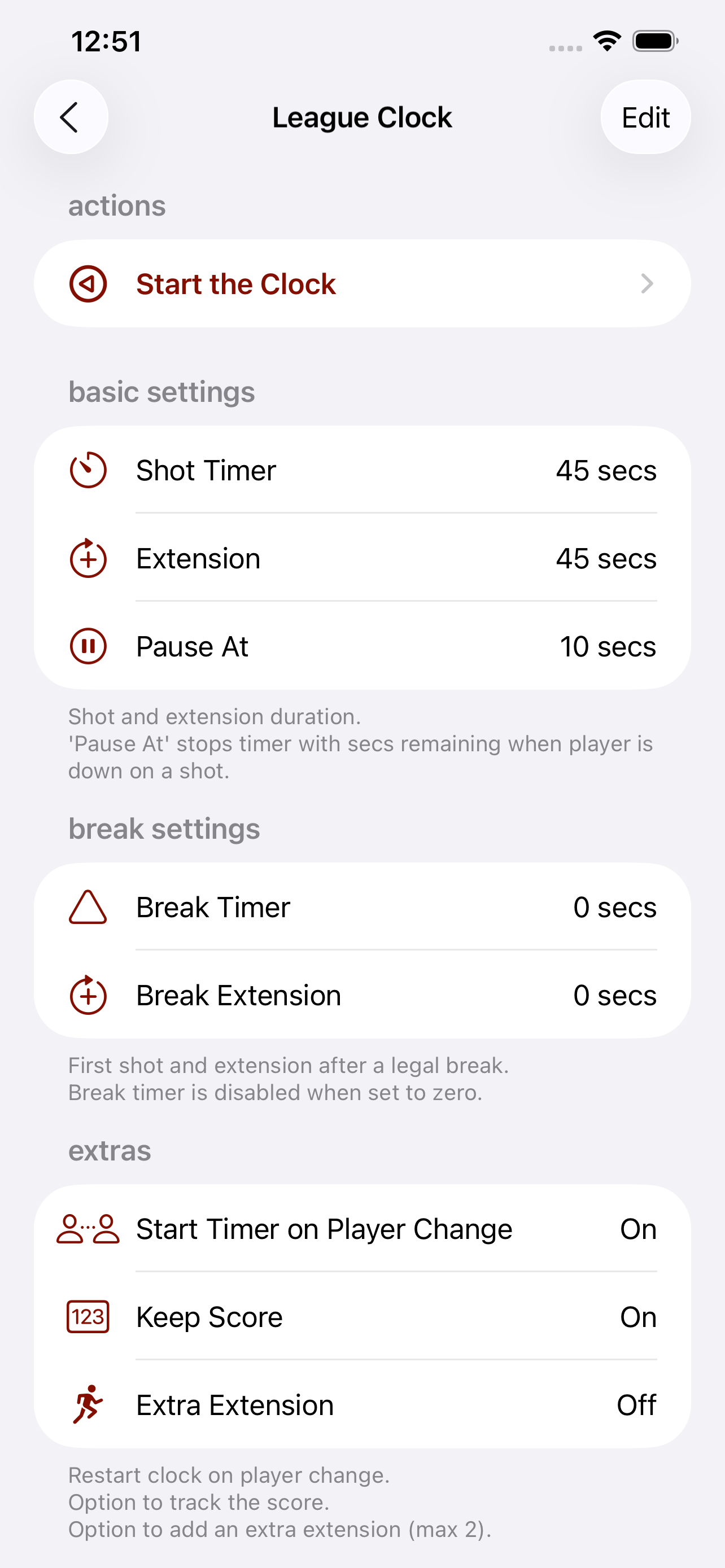
Whether you create your own configuration or use the defaults, selecting a clock shows every setting. Edit anytime.
Start the Clock takes you into the running timer view.
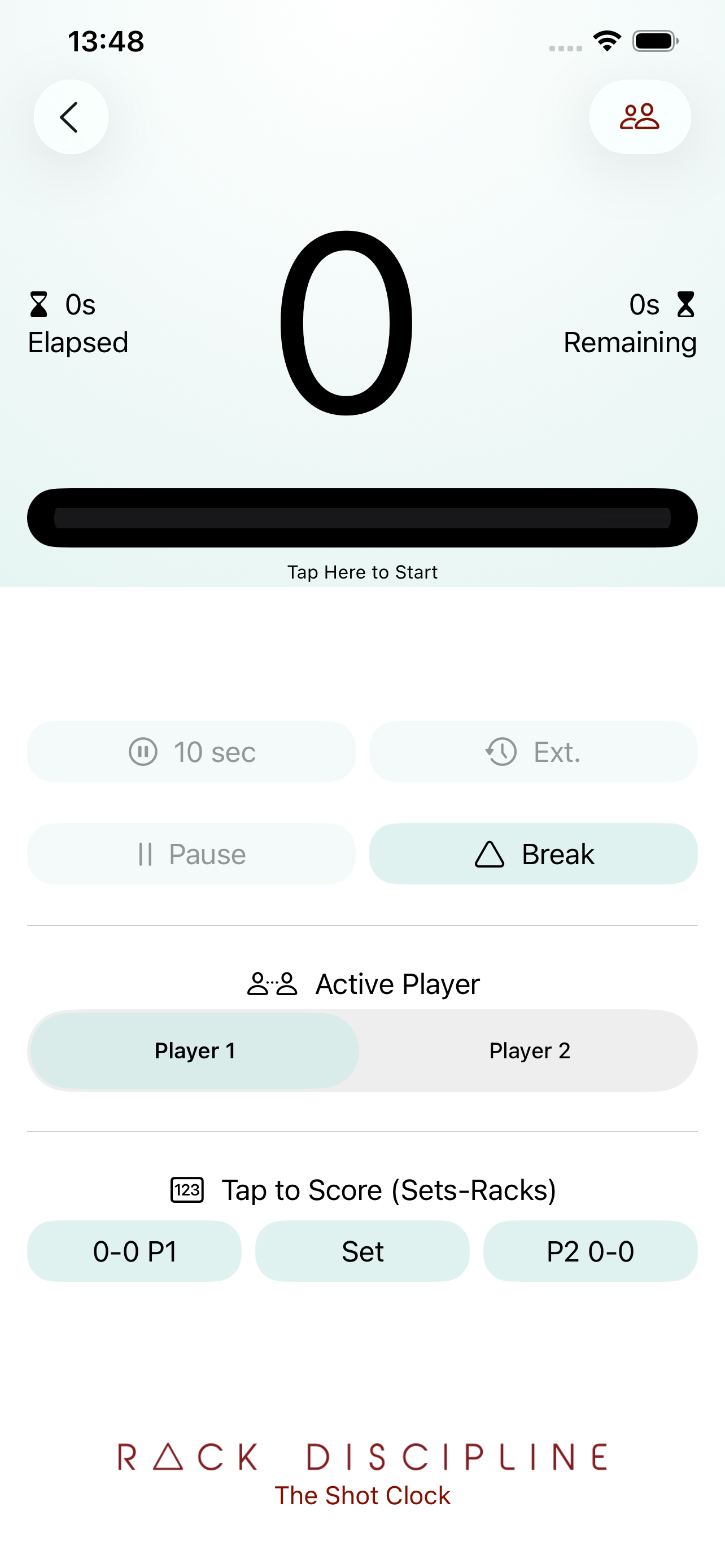
Break — Reset extension trackers and start the clock for a new rack (uses the Break Timer value if set).
Ext — Extension called. Adds the Extension value and assigns it to the active player (one per rack).
@ N sec — Pause with N seconds remaining (CSI league play when the player is down on the shot).
Pause / Resume — Hold the countdown and continue when ready.
Active Player — Toggle between players so extensions are recorded correctly.
Player Manager — Set player names for the Timer view; names save with the configuration.